Thursday, September 6, 2012

A nifty trick with Word and Google Forms

Have you ever wanted to transform an existing Word document (or old Word quiz) into a Google Form? Well, you can do it. It doesn't quite have the advanced features, but it can do it in a simple fashion.

Here's how:
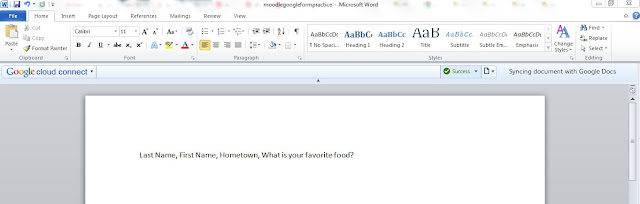

  1. Type in your questions in a Word document. Each question should not be separated by a new line, but by a comma. 
  1. Save the document as a plain text file (.txt)
  2. Go into Google Drive and create a spreadsheet
  3. Select File-->Import and browse for that .txt file
  4. Select Import

  1. Select Open File (blue link next to file name)
  2. In your spreadsheet, click on Tools-->Create Form

  1. Now, your form will open and you can do any last minute editing on it. 
Though, this is an added step, it is helpful if you have existing Word quizzes that you want to make into a survey without retyping all of the questions. 

Wednesday, September 5, 2012

Some cool Chrome applications

Though Google Apps for Education is nearly a complete package, there are several other applications available in the Google Chrome browser that are worth a look:


  • All are great tools for educators and most are free! Check them out!

    Tuesday, September 4, 2012

    Moodle meets GAFE?

    As our district begins to create Google accounts for all students as part of the GAFE development, we look for ways to manage student activity, accounts, and learning. Hapara is one solution to that problem--the teacher dashboard. At the admin level, classrooms can be set up for teachers and students.

    Once the classroom is set up, school-level folders are created for student work. Teachers have the ability to oversee student email. And, teachers even have the ability to manage documents by class and by student and by recent modification.

    Teacher dashboard is a great blend of Moodle and Google--classroom management meets the Google Cloud via GAFE.

    It is an add-on to GAFE; however, it does cost $4 per student. Many districts start small with just a few classrooms. Though, if teacher classroom exists, I believe the capability to expand classroom management software to GAFE exists. So, if your district cannot afford the fee, keep looking--the technology is there!

    Monday, August 27, 2012

    Chrome printing issues

    Over the past few weeks, the current version of Chrome has posed several problems printing. As more schools use Google Apps for Education and switch to using Chrome as a browser (still a far superior browser compared to IE), it is important to make sure the basic needs are met--like printing.

    As helpful advice to fellow teachers and instructional/technological leaders, here are some "quick" fixes to the Chrome/PDF viewer print dialog issues.

    Problem summary: When attempting to print in Chrome (any application), the user can press Ctrl+P, click the print button on the application, or go to File-->Print. In all three cases, the print dialog box (a Chrome-generated PDF viewer) fails to appear. Therefore, documents fail to print. There is no quick print feature.

    Fixes:

    1. Hold down Ctrl+Shift+P to print. This will generate the PDF viewer.
    2. Open another computer application like MS Word, prompt Word to print and then, return to Chrome and print. 
    3. Close out of Chrome (sometimes multiple times are necessary) and reopen Chrome.
    Various forums suggest enabling the PDF viewer add-in (though, it is enabled by default). However, this does not seem to be the case in many instances. The important part is to provide staff with a simple set of fixes they can do in order to make the "clean-up" smooth and easy. 

    Friday, August 24, 2012

    Assignment dropboxes with Google Forms

    The activities you can create with Google Forms is ever-increasing. Per Tammy Worcester's handy Web site, you can find the how-tos of creating a Google Form that serves as an assignment drop box.

    After student submit the form, the data concerning their form populates as a concise, clear spreadsheet for you to manage. Combine this with a script and you can populate grades as well.  

    Thursday, August 23, 2012

    The Google Drive Transition

    In the process of changing Google Docs to Google Drive, some things were left unclear to Google Apps users:


    1. Two formats of Google Drive: Web-based and computer-based--this confuses many teachers as they attempt to download Google Drive (the computer-based version that syncs with your Web documents) rather than continuing to use Google Drive Web-based
    2. Adding/Moving files: Now, when you attempt to move/add a file that has been shared with you to one of your folders, you have to hold down the Ctrl key while dragging it. If you do not, you remove all labels from the shared document and essentially, remove it from that shared folder so no one else can find it. This did not happen in Documents.
    3. Lastly, there is an option to delay transition to Google Drive so many Apps users have to manually upgrade to Drive. This confuses many teachers who cannot find "Drive" during district trainings. And, rather than pushing out Google Drive to all Apps users, staff have to do it on their own--which doesn't always happen.
    To help distinguish between Documents and Drive and to help other newbie users upgrade to Drive, check out this handout I created. 


    Monday, August 20, 2012

    Quick and easy text to school groups with Google Apps

    Ever want to send a text out to parent groups to remind them of activities or of the legendary "folder"? Well, there is an easy and free (if the recipients have texting plans) way to do it with Google Apps.


    1. Log into your gmail
    2. Click on the gear in the far right and select settings
    3. In the settings menu, click on the labs tab
    4. Click on the enable button next to "SMS (text messaging) in Chat"
    5. That's the first step
    Now, if you already have created your contacts and groups, you can breeze to part two. If you haven't, you will want to do so first. 

    1. In the chat box in the bottom left, start typing in a contact's name. As you type, you should see the option to "send SMS" to the right of it. Click on that. 
    2. In the box that is open for a phone number, enter the contact's phone number. 
    3. In the bottom portion of the box, type your message. 
    4. Press enter when your message is done.
    That's it! You are given 50 free messages to start with. As you send one, your count drops. However, as you receive SMS, your total will increase. It will never be locked out.